AI Art Generator
Describe a scene and name a style, and the AI art generator paints it in oil, watercolor, ink, digital art or 3D. A reference picture is optional.
Optional: add a reference picture
No subscription·Failed runs refund credits
Sign in to get free credits every day and keep your creations.
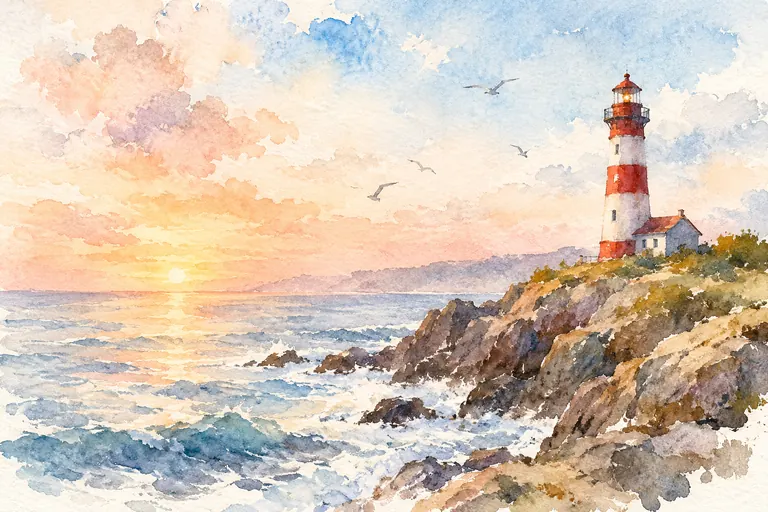
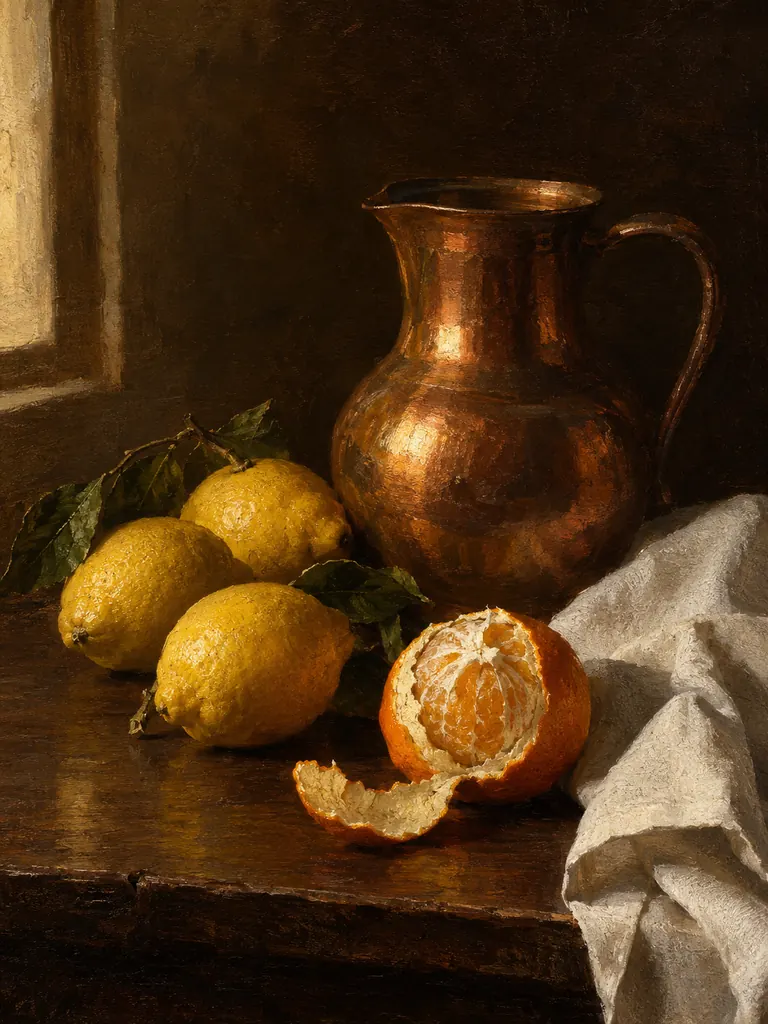
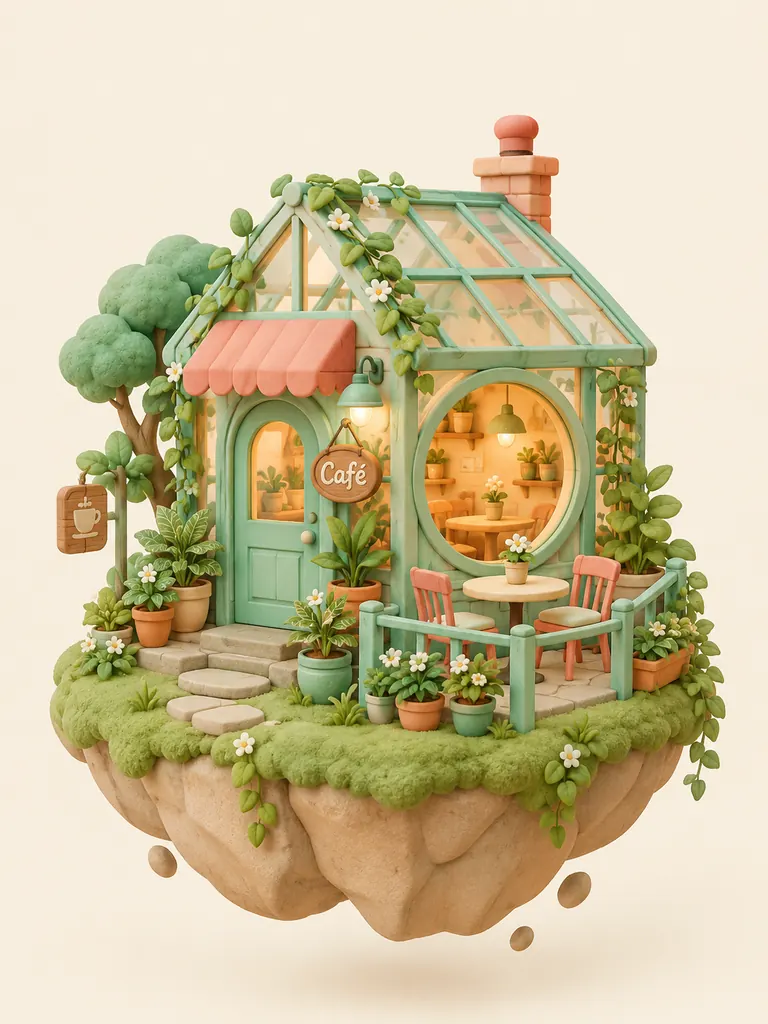
Art made with the AI art generator
Each piece below came from one prompt that names the subject, the medium and the colors. Tap “Use this prompt”, then change the subject to make it yours.
- Watercolor coast
“A loose watercolor painting of a red-and-white lighthouse on a rocky coast at dawn, soft washes of peach and pale blue in the sky, white paper showing through, gentle wet-edge blooms and a few gulls. Wide composition with the lighthouse on the right third.”
- Oil still life
“A classical oil painting of a copper jug, three lemons, a half-peeled orange and a folded white linen cloth on a dark wooden table, warm window light from the left, deep brown shadows and visible brushstrokes, in the manner of a 17th-century Dutch still life.”
- 3D clay render
“A cute 3D render of a tiny greenhouse café on a floating island, soft clay-like materials, pastel mint and coral colors, small potted plants and a round window glowing warm inside, soft studio light with gentle shadows, centered on a plain cream background.”
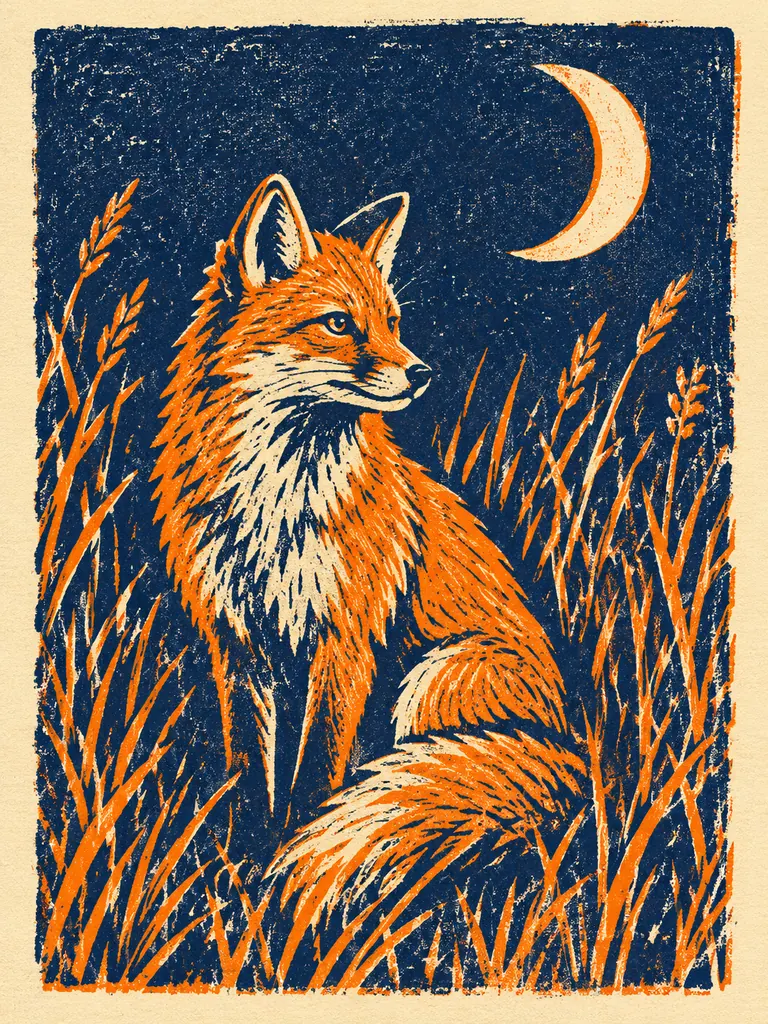 Linocut print
“A two-color linocut print of a fox sitting in tall grass under a crescent moon, deep indigo and warm orange ink on cream paper, bold carved lines, visible ink texture and slight misregistration between the two colors.”
Styles the AI art generator can paint
The style lives in your words. Name a medium, a palette and a mood, and the model changes brushwork, texture and light to match. You can mix styles too: an ink drawing with watercolor washes, or a 3D scene lit like an old oil painting.
- Traditional painting. Oil, watercolor, gouache, pastel and acrylic, each with its own texture. Ask for visible brushstrokes, paper grain or thick paint, and the picture looks handmade rather than smooth and digital.Name the medium first: “an oil painting of…” · Add surface detail: “canvas texture”, “paper grain” · Loose styles hide small errors; tight realism shows them
- Digital art and 3D. Concept art, fantasy matte paintings, flat vector illustrations and soft 3D renders that look like clay or toys. Useful for game ideas, blog headers and pitch decks.“Digital painting” gives painterly concept art · “Flat vector, no gradients” gives clean shapes · “Soft clay 3D render” gives toy-like scenes
- Print and graphic styles. Linocut, woodblock, risograph, screen print and ink line art. Few colors and bold shapes make these styles a good fit for posters, cards and wall art.Limit the palette: “two colors, indigo and orange” · Ask for texture: “ink spread”, “slight misregistration” · Pick 2K or 4K if you plan to print
How to make art with the AI art generator
- 1Describe the subject
Say what is in the picture and where: “a fox in tall grass under a crescent moon”. One clear subject works better than a long list of objects.
- 2Name the style
Add the medium, two or three colors and the light. “Two-color linocut, indigo and orange, on cream paper” tells the model far more than “artistic”.
- 3Choose shape and model
Pick 3:4 for wall art or 16:9 for a banner. Nano Banana 2.1 is selected by default, and the credit cost shows before you start.
- 4Generate and download
Most images are ready within a few minutes (free accounts wait a little longer on premium models). Download at full size with no watermark.
Tips for better AI art
- 01
Swap vague words for materials
Words like “beautiful” or “epic” give the model nothing to draw. “Thick oil paint”, “wet watercolor edges” or “charcoal on rough paper” change the whole picture.
- 02
Name the colors you want
Two or three named colors give a picture a clear mood: “rust, cream and teal”. Without them, the model picks a safe, busy palette.
- 03
Change one thing at a time
When a painting is close, keep the prompt and change a single part, such as the light or the medium. Rewriting everything starts you from zero.
- 04
Describe a look instead of copying one
Rather than naming a living artist, list what you like about the look: the era, the brushwork, the palette. The result is closer to what you pictured, and it stays your own.
A free AI art generator with every style in one box
Many tools give you a handful of style buttons. This AI art generator puts the style in the prompt instead, so the same box can paint a watercolor harbor, a pencil study, a neon digital painting or a 3D toy scene. If you can describe it with a medium, colors and light, you can try it.
Our newest model is the default on this page. You can switch models at any time: GPT Image 2.5 for long, detailed prompts and short text on art prints that carry a title or a quote, Seedream for rich, saturated color, Nano Banana Pro for fine detail, or the free FLUX.2 model for quick sketches of an idea.
You can also start from a picture. Attach a photo, a rough sketch or an earlier piece as a reference, and ask for a new style or the same layout. The default model accepts 10 reference pictures and GPT Image 2.5 16, which helps when a series needs the same colors and characters.
Credits work the same across the site. Google sign-ins get free credits, and more to claim every day. With the default model a 1K image costs 2 credits, 2K costs 3 and 4K costs 4. Every picture downloads at full size without a watermark and may be used in personal and commercial work.
AI art generator FAQ
Is the AI art generator free?
- Yes, you can make art for free. Google sign-ins get free credits and more every day, and the FLUX.2 model uses no credits and is unlimited for normal use (a daily fair-use limit only stops automated abuse). Premium models, the default one included, use credits.
Can I sell the art I make?
- Yes. Images download without a watermark and may be used in personal and commercial projects, such as prints, book covers and merchandise. Leave out real people, brands and characters you do not own.
Which model is best for AI art?
- The default is Nano Banana 2.1, our newest model. GPT Image 2.5 handles long prompts and lettering best, Seedream gives rich color and cinematic scenes, and Nano Banana Pro adds the most fine detail. Run one prompt on two models and compare.
Can the AI art generator start from my photo?
- Yes. Add a photo as a reference and describe the style you want, such as “paint this as an oil painting with thick brushstrokes”. The layout stays and the look changes.
How large can the image be?
- The default model renders 1K, 2K and 4K. Use 1K to test ideas, then run the prompt you like in 2K or 4K for printing or large screens.
What kind of art is not allowed?
- Sexual content, anything involving minors, and images meant to deceive or harass a real person are blocked. The full rules are on the content policy page.