AI LinkedIn Photo Generator
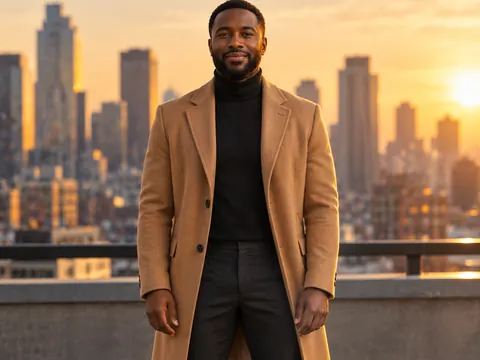
Upload a photo of yourself and say how you want to come across. The AI LinkedIn photo generator frames your head and shoulders for the round profile crop, adds a calm background and keeps the light natural.
Add a photo where your face is sharp
No subscription·Failed runs refund credits
Sign in to get free credits every day and keep your creations.


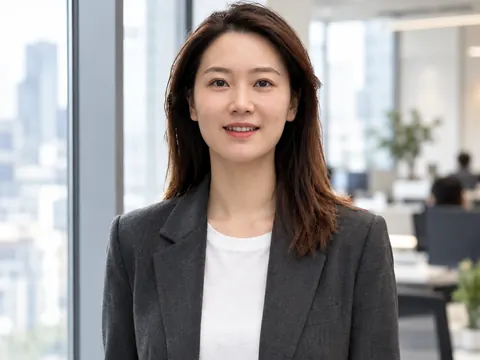
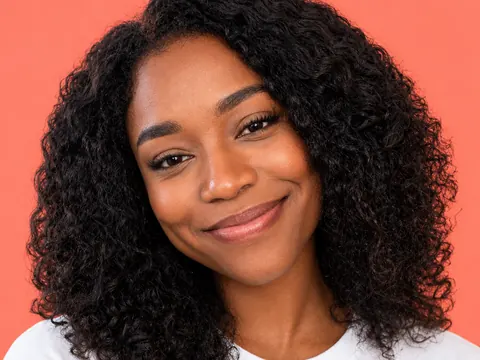
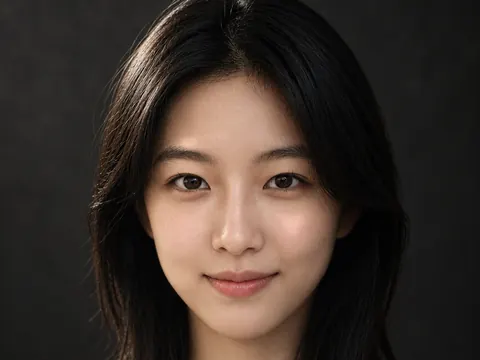
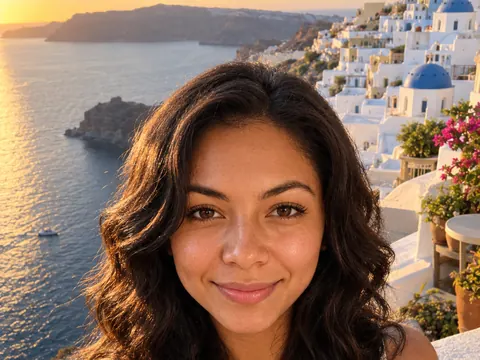
Profile photos from the AI LinkedIn photo generator
Each result began as a picture from someone’s camera roll: a balcony selfie, a snap on the sofa, a plain phone photo. Tap “Use this prompt”, add your own picture and run it.
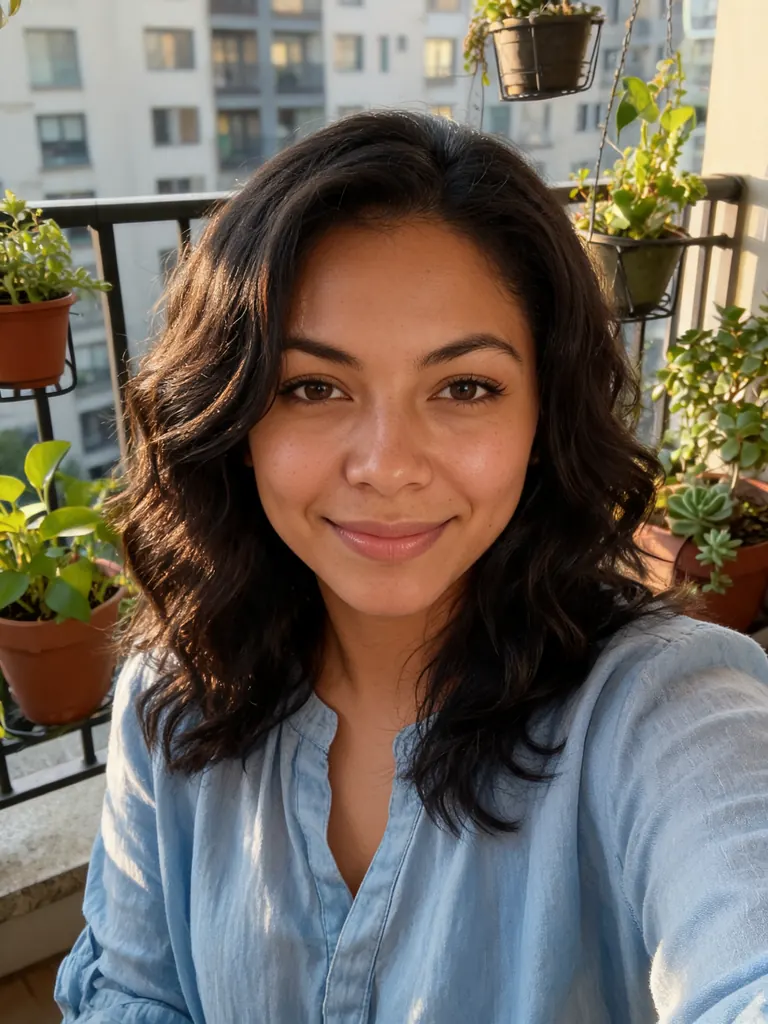
Before After Warm and approachable“Make this a LinkedIn profile photo: head and shoulders centered in a square frame with space above her head, softly blurred office behind her, warm daylight, light blue blouse. Keep her face, smile, hair and skin tone the same, with natural skin texture.”

Before After Bright office“Turn this into a LinkedIn profile photo: swap the hoodie for a navy crew-neck sweater over a white collared shirt, bright modern office blurred behind him, window light from the side, chest-up and centered. Keep his face, hair and skin tone the same, with real skin texture.”
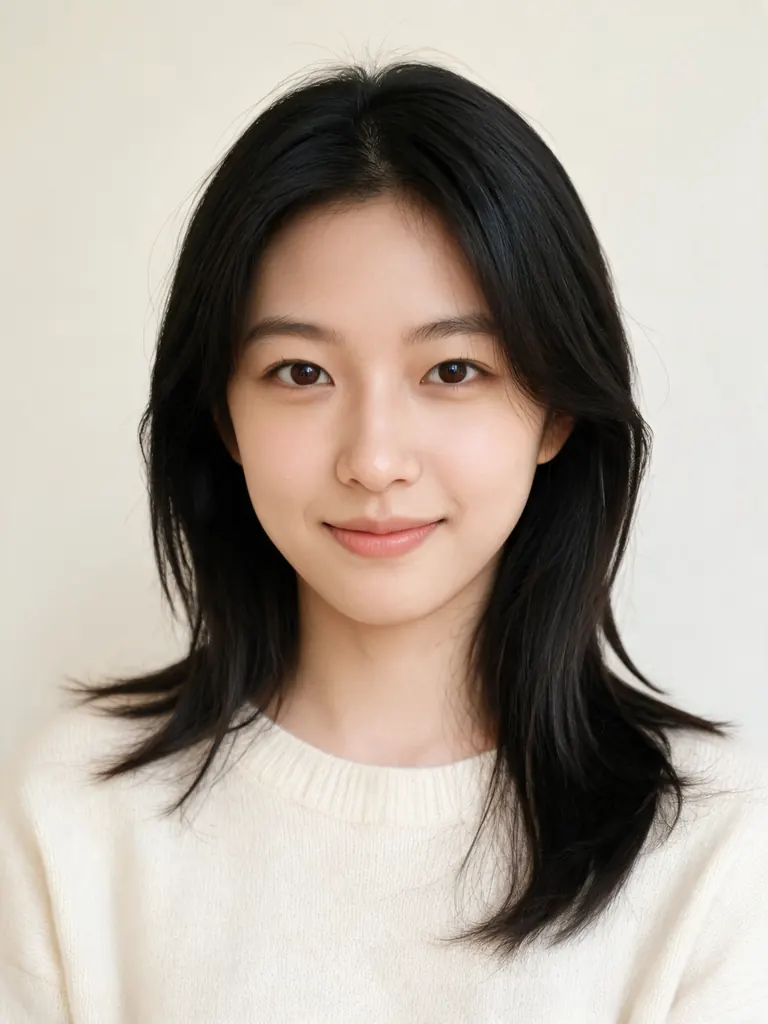
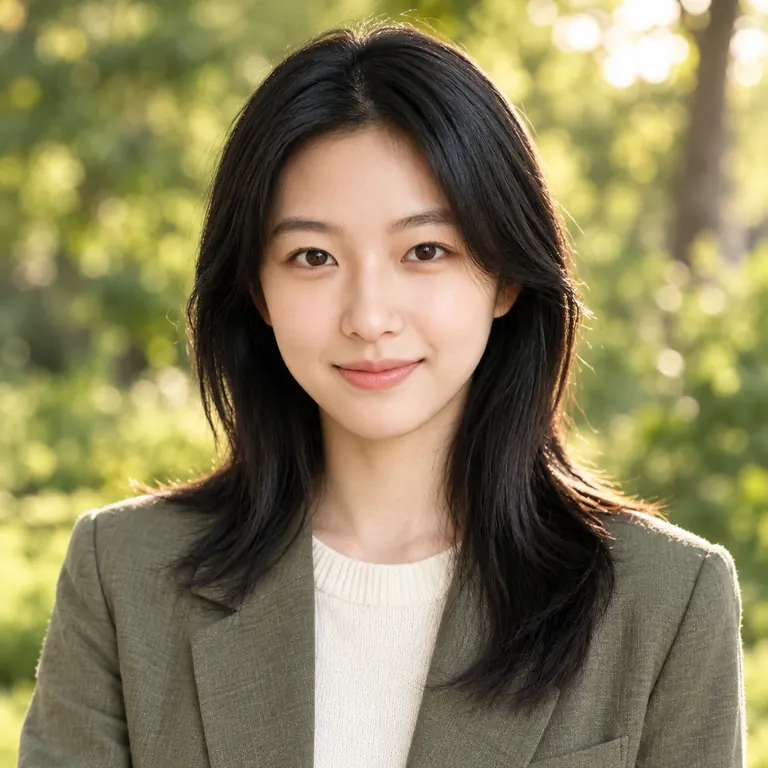
Before After Outdoor daylight“Create a LinkedIn profile photo outdoors: soft green trees blurred behind her in late afternoon light, olive linen blazer over her cream sweater, relaxed smile, framed from the chest up. Keep her face, hair and skin tone exactly as they are, with natural skin texture.”

Before 
After Solid color“Give him a LinkedIn profile photo on a solid muted teal backdrop that stays clean inside a circle crop: light gray button-down shirt, soft even light, head and shoulders centered with room around his head. Do not change his face, hair or skin tone, and keep natural skin detail.”
What the AI LinkedIn photo generator gets right
On LinkedIn your photo is mostly seen as a small circle next to your name, in search results, comments and messages. It should look like you on a good day and read clearly at that size.
- Framing for the circle. LinkedIn cuts a circle out of a square picture. The generator centers your head and shoulders and leaves room above your hair, so the round crop never slices off your chin or the top of your head.Ask for “head and shoulders, centered” · Add “space above the head” for the round crop · Your face should fill about half the square
- A friendly, confident look. People see your picture before they read your headline. A relaxed smile, eyes on the camera and warm light make you look open and easy to contact.Upload a picture where you already smile · “Looking at the camera” keeps eye contact · Soft warm light reads friendlier than flash
- Backgrounds for your field. A blurred office suits finance and consulting. Trees and daylight suit a designer, a coach or a teacher. A solid color keeps the circle clean and stands out in a busy feed.Keep the background soft and out of focus · Pick one muted color for a solid backdrop · Leave out signs, logos and text behind you
How to get your photo from the AI LinkedIn photo generator
- 1Pick a recent picture
Choose a photo from the last year or two where your face is sharp and well lit. A phone snap or a vacation photo works if your face is clear.
- 2Say how you want to come across
Describe the background, the clothes and the mood, such as “friendly and relaxed” or “calm and confident”. Then add “keep my face, hair and skin tone the same”.
- 3Keep the square size
The AI LinkedIn photo generator presets the size to 1:1. Nano Banana 2.1 is selected by default; for the most faithful likeness, switch to Nano Banana 2 or Pro.
- 4Check it small, then upload
Most photos are ready within a few minutes (free accounts wait a little longer on premium models). View each one as a small circle on your phone and keep the one that looks most like you.
Tips for a profile photo people trust
- 01
Look like you do on a video call
Anyone who meets you after seeing your profile should recognize you. Keep your current hairstyle, glasses and beard.
- 02
Dress one step above your usual workday
A sweater or an open-collar shirt suits most offices; a blazer suits law, finance and sales. Plain colors look cleaner in a small circle than stripes or checks.
- 03
Keep the edit subtle
Ask for “natural skin texture” and “believable daylight”. Heavy smoothing and dramatic lighting look staged next to the simple, real photos most people use.
- 04
Use the same picture everywhere
Put one photo on LinkedIn, your email account, your personal site and work chat. A consistent face makes you easier to find and to remember.
An AI LinkedIn photo generator for the photo you keep putting off
Plenty of people know their profile picture is out of date or cropped from a wedding photo, and still never book a shoot. An AI LinkedIn photo generator fixes that with a picture you already have. Upload it, describe the background and mood, and get back a square photo framed for the round crop.
The aim is a photo that looks like you, not a stranger in a suit. Our newest model is the default here, and GPT Image 2.5 follows detailed instructions about framing, clothes and light. Nano Banana 2 and Pro usually keep faces most faithfully, so use one of them when the likeness must be close. Make two or three versions and keep the one your coworkers would recognize.
For most people this is a free AI LinkedIn photo generator. Google sign-ins get free credits, and more to claim every day. A 1K image with the default model costs 2 credits, which is plenty for a profile; pick 2K if you also want the photo for a conference badge or a printed bio.
AI Photo Generator Studio is not affiliated with LinkedIn, and no tool can promise that a photo meets another site’s rules, so check LinkedIn’s own guidance. Your uploads stay private, results appear only in My Images, downloads have no watermark, and photos made to pass as someone else are not allowed.
AI LinkedIn photo generator FAQ
Is the AI LinkedIn photo generator free?
- Yes, for a few photos. Google sign-ins get free credits and more every day. A 1K profile photo with the default model costs 2 credits, so you can try several backgrounds without paying.
Is this an official LinkedIn tool?
- No. We are not affiliated with LinkedIn and cannot sign off on photos for any site. The AI LinkedIn photo generator gives you a clean, square picture of yourself; check it against LinkedIn’s own profile photo guidance before you post it.
Will the photo still look like me?
- Usually, when you start from a sharp picture and ask to keep your face, hair and skin tone. For the most faithful likeness, run the prompt on two models from the picker and keep the closer face. No model matches a face perfectly every time.
How is this different from the headshot page?
- The AI headshot generator makes formal studio portraits on a plain backdrop. This page is tuned for LinkedIn: a square frame that crops cleanly into a circle, a friendlier look and backgrounds such as a soft office, daylight outdoors or a solid color.
Can I start from a group photo?
- Yes, if your face is clear and in focus. Say which person you are, for example “the woman on the left in the blue top”, and ask for a photo of only that person. Very small or blurry faces give soft results.
What is not allowed?
- Sexual content, anything involving minors, and profile photos of someone else made to impersonate or deceive are blocked. The full rules are on the content policy page.